
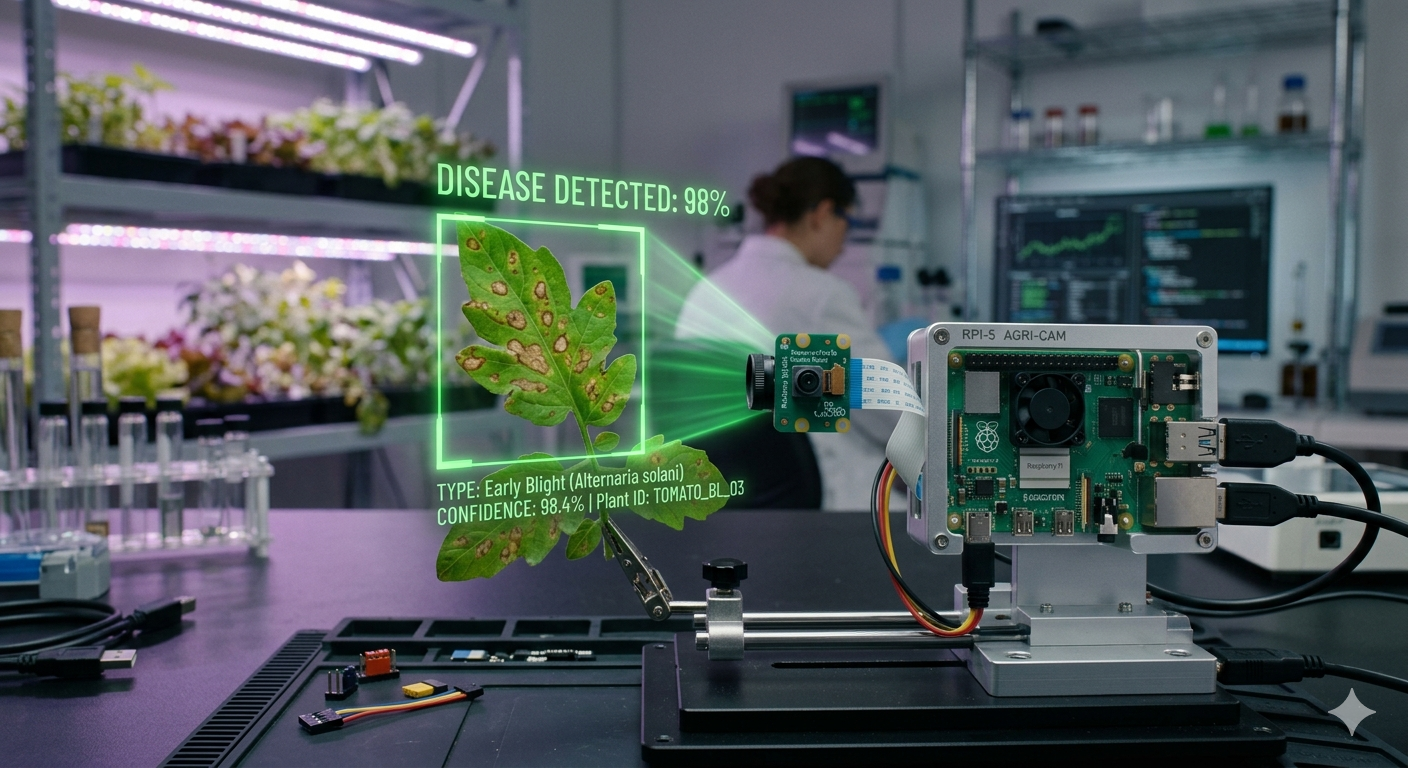
In this complete guide, you will build a real-time AI plant disease detection system using a Raspberry Pi 4, Pi Camera Module, TensorFlow Lite, and MobileNetV2 CNN. The system classifies 38 plant diseases from live camera images and pushes results to a Node-RED IoT dashboard via MQTT — with full Python source code, step-by-step wiring, and setup instructions.
🌱
AI Plant Disease Detection System
CNN + Raspberry Pi 4 + TensorFlow Lite + MQTT Dashboard
MobileNetV2
PlantVillage Dataset
TFLite Edge Inference
Node-RED Dashboard
Flask REST API
📋 Table of Contents
- Project Overview & How It Works
- Prerequisites & Required Libraries
- Parts Required & Bill of Materials
- Step 1 — Download & Prepare the Dataset
- Step 2 — Train the CNN Model (MobileNetV2)
- Step 3 — Convert to TensorFlow Lite
- Step 4 — Raspberry Pi Wiring & Hardware Setup
- Step 5 — Real-Time Inference on Raspberry Pi
- Step 6 — MQTT + Node-RED IoT Dashboard
- Step 7 — Flask Web API for Remote Image Upload
- Results & Model Accuracy
- Frequently Asked Questions (FAQ)
Project Overview & How It Works
Plant diseases are responsible for significant crop losses worldwide. Traditional disease identification requires expert agronomists — an expensive and slow process. This project replaces that with an AI system that a farmer can use in the field using a small, low-cost Raspberry Pi board.
The system works in three stages:
- Image capture: The Pi Camera captures a photo of a plant leaf when triggered.
- AI inference: A TensorFlow Lite CNN model runs directly on the Raspberry Pi (edge AI) and classifies the disease in under one second.
- Reporting: The result is published to a Node-RED dashboard via MQTT and optionally sent to a Flask REST API.
💡 This project uses edge AI (on-device inference) — the model runs entirely on the Raspberry Pi without sending images to any cloud server. This makes it work without internet, perfect for remote agricultural areas.
Prerequisites & Required Libraries
Before starting, make sure you have the following software knowledge:
- Basic Python 3 programming
- Familiarity with Raspberry Pi GPIO and Linux terminal
- Basic understanding of neural networks (helpful but not required)
Install Required Libraries on Your Training PC / Laptop
Run these commands on your training PC or laptop (not the Raspberry Pi — it is too slow to train neural networks):
# Training PC / Laptop
pip install tensorflow==2.13 opencv-python matplotlib scikit-learn
pip install numpy pandas Pillow tqdm
Install Required Libraries on Raspberry Pi
# Raspberry Pi terminal
pip install tflite-runtime opencv-python-headless
pip install paho-mqtt picamera2 flask
# Output: Successfully installed tflite-runtime-2.13.0...
Parts Required & Bill of Materials
| Component | Specification | Qty | Approx. Cost (INR) |
|---|---|---|---|
| Raspberry Pi 4 Model B | 4 GB RAM recommended | 1 | ₹4,500–₹6,000 |
| Pi Camera Module v2 | 8 MP NoIR or standard | 1 | ₹1,200–₹1,800 |
| MicroSD Card | 32 GB Class 10 with Raspberry Pi OS | 1 | ₹350 |
| USB-C Power Supply | 5 V 3 A minimum | 1 | ₹400 |
| LED (Green + Red) | 5 mm, for status indicators | 4 | ₹20 |
| 330 Ω Resistors | For LED current limiting | 4 | ₹10 |
| Pushbutton | For manual capture trigger | 1 | ₹10 |
| Breadboard + Jumper Wires | Standard 400-point | 1 set | ₹150 |
💰 Budget tip: You can prototype this project on a laptop with a webcam. Replace
picamera2withcv2.VideoCapture(0)and use the standardtensorflowpackage instead oftflite_runtime.
Step 1 — Download & Prepare the PlantVillage Dataset
We use the PlantVillage dataset — the most widely used open-source plant disease image dataset, containing over 54,000 images across 38 disease classes.
- 📥 Download: Kaggle — PlantVillage Dataset
- 📁 Format: 38 folders named after disease classes (e.g.,
Apple___Apple_scab) - 🖼️ Size: ~2.5 GB, JPEG images of plant leaves
After downloading, organise your folder structure like this:
plant_disease_project/
├── PlantVillage/
│   ├── Apple___Apple_scab/        (631 images)
│   ├── Apple___Black_rot/         (621 images)
│   ├── Tomato___healthy/          (1591 images)
│   └── ... (38 classes total)
├── train_model.py
├── convert_tflite.py
└── pi_inference.py
Step 2 — Train the CNN Model (MobileNetV2 Transfer Learning)
We use MobileNetV2 transfer learning for this project. MobileNetV2 was pre-trained on ImageNet (1.4 million images), so it already understands edges, textures, and shapes. We only need to train the top layers on our plant disease data, giving excellent accuracy with much less training time.
Why MobileNetV2 for Plant Disease Detection?
- ✅ Runs fast on Raspberry Pi — designed for mobile and edge devices
- ✅ Small model size (~14 MB) compared to VGG16 (~528 MB)
- ✅ Achieves ~97% accuracy on PlantVillage with transfer learning
- ✅ Easy to convert to TensorFlow Lite format
Training Script — train_model.py
# ============================================================
# AI Plant Disease Detection — Model Training
# Website: iotprojectsandtrainings.in
# Train MobileNetV2 on PlantVillage Dataset
# ============================================================

import tensorflow as tf
from tensorflow.keras.applications import MobileNetV2
from tensorflow.keras.layers import Dense, GlobalAveragePooling2D, Dropout
from tensorflow.keras.models import Model
from tensorflow.keras.preprocessing.image import ImageDataGenerator
from tensorflow.keras.callbacks import EarlyStopping, ReduceLROnPlateau, ModelCheckpoint
import matplotlib.pyplot as plt

# --- Configuration ---
IMG_SIZE    = 224      # MobileNetV2 expects 224x224
BATCH_SIZE  = 32
NUM_CLASSES = 38       # PlantVillage has 38 disease classes
DATASET_DIR = 'PlantVillage/'
EPOCHS_PHASE1 = 10    # Train only top layers
EPOCHS_PHASE2 = 20    # Fine-tune last 30 layers

# --- Data Augmentation ---
# Augmentation prevents overfitting and improves real-world generalisation
train_datagen = ImageDataGenerator(
    rescale=1./255,
    rotation_range=25,
    width_shift_range=0.15,
    height_shift_range=0.15,
    horizontal_flip=True,
    zoom_range=0.15,
    brightness_range=[0.8, 1.2],
    validation_split=0.2       # 80% train, 20% validation
)

train_generator = train_datagen.flow_from_directory(
    DATASET_DIR,
    target_size=(IMG_SIZE, IMG_SIZE),
    batch_size=BATCH_SIZE,
    class_mode='categorical',
    subset='training',
    shuffle=True
)

val_generator = train_datagen.flow_from_directory(
    DATASET_DIR,
    target_size=(IMG_SIZE, IMG_SIZE),
    batch_size=BATCH_SIZE,
    class_mode='categorical',
    subset='validation',
    shuffle=False
)

# Save class labels for inference
import json
class_indices = train_generator.class_indices
class_names = {v: k for k, v in class_indices.items()}
with open('class_names.json', 'w') as f:
    json.dump(class_names, f)
print(f"Saved {NUM_CLASSES} class labels to class_names.json")

# --- Phase 1: Build Model with Frozen Base ---
base_model = MobileNetV2(
    weights='imagenet',
    include_top=False,
    input_shape=(IMG_SIZE, IMG_SIZE, 3)
)
base_model.trainable = False   # Freeze all base layers

x = base_model.output
x = GlobalAveragePooling2D()(x)
x = Dropout(0.3)(x)
x = Dense(512, activation='relu')(x)
x = Dropout(0.3)(x)
predictions = Dense(NUM_CLASSES, activation='softmax')(x)

model = Model(inputs=base_model.input, outputs=predictions)

model.compile(
    optimizer=tf.keras.optimizers.Adam(lr=1e-3),
    loss='categorical_crossentropy',
    metrics=['accuracy']
)

callbacks = [
    EarlyStopping(patience=5, restore_best_weights=True),
    ReduceLROnPlateau(factor=0.5, patience=3),
    ModelCheckpoint('best_model.h5', save_best_only=True)
]

print("=== Phase 1: Training top layers ===")
history1 = model.fit(
    train_generator,
    validation_data=val_generator,
    epochs=EPOCHS_PHASE1,
    callbacks=callbacks
)

# --- Phase 2: Fine-tune last 30 layers ---
base_model.trainable = True
for layer in base_model.layers[:-30]:
    layer.trainable = False

model.compile(
    optimizer=tf.keras.optimizers.Adam(lr=1e-5),  # Lower LR for fine-tuning
    loss='categorical_crossentropy',
    metrics=['accuracy']
)

print("=== Phase 2: Fine-tuning last 30 layers ===")
history2 = model.fit(
    train_generator,
    validation_data=val_generator,
    epochs=EPOCHS_PHASE2,
    callbacks=callbacks
)

model.save('plant_disease_model.h5')
print("✅ Model saved to plant_disease_model.h5")
⚠️ Training Time: On a free GPU in Google Colab, training takes 45–90 minutes. On a CPU laptop, expect 4–6 hours. We strongly recommend using Colab, then transferring the
.h5andclass_names.jsonfiles to your Raspberry Pi.
Step 3 — Convert the Model to TensorFlow Lite
TensorFlow Lite (TFLite) is a compressed, optimised version of a TensorFlow model designed to run on microcontrollers and single-board computers like the Raspberry Pi. Integer quantisation reduces model size by ~4× and inference time by ~2×.
Conversion Script — convert_tflite.py
import tensorflow as tf
import numpy as np

# Load trained Keras model
model = tf.keras.models.load_model('plant_disease_model.h5')

# Convert with integer quantisation (smaller, faster on RPi)
converter = tf.lite.TFLiteConverter.from_keras_model(model)
converter.optimizations = [tf.lite.Optimize.DEFAULT]

# Representative dataset for full-integer quantisation
def representative_dataset():
    for _ in range(100):
        data = np.random.rand(1, 224, 224, 3).astype(np.float32)
        yield [data]

converter.representative_dataset = representative_dataset

tflite_model = converter.convert()

with open('plant_model.tflite', 'wb') as f:
    f.write(tflite_model)

tflite_size = len(tflite_model) / 1024 / 1024
print(f"✅ TFLite model size: {tflite_size:.2f} MB")
print("✅ Saved to plant_model.tflite — ready for Raspberry Pi!")
Step 4 — Raspberry Pi Wiring & Hardware Setup
Connect the Pi Camera
- Power off your Raspberry Pi completely.
- Locate the CSI camera port (between the USB and HDMI ports).
- Gently lift the plastic clip, insert the camera ribbon cable with the blue side facing the USB ports.
- Press the clip back down firmly.
LED & Button GPIO Wiring Table
| Component | RPi GPIO Pin | Notes |
|---|---|---|
| Green LED (Anode) | GPIO 17 (Pin 11) | Via 330 Ω resistor to GND |
| Red LED (Anode) | GPIO 27 (Pin 13) | Via 330 Ω resistor to GND |
| All LED Cathodes | GND (Pin 14) | Common ground |
| Pushbutton pin 1 | GPIO 22 (Pin 15) | Pull-down with 10 kΩ to GND |
| Pushbutton pin 2 | 3.3 V (Pin 17) | — |
Enable Camera in Raspberry Pi Config
pi@raspberrypi:~ $ sudo raspi-config
# Interface Options → Camera → Enable → Finish → Reboot

pi@raspberrypi:~ $ libcamera-hello   # Verify camera works
# Camera started successfully...
Step 5 — Real-Time Inference on Raspberry Pi
This is the main script that runs on the Raspberry Pi. It captures a leaf image when the button is pressed, runs TFLite inference, lights the appropriate LED, and publishes results via MQTT.
Inference Script — pi_inference.py
# ============================================================
# AI Plant Disease Detection — Raspberry Pi Real-Time Inference
# iotprojectsandtrainings.in | Final Year Project
# ============================================================

import numpy as np
import tflite_runtime.interpreter as tflite
from picamera2 import Picamera2
import paho.mqtt.client as mqtt
import RPi.GPIO as GPIO
import json, time, cv2, datetime

# --- GPIO Setup ---
GPIO.setmode(GPIO.BCM)
GPIO.setwarnings(False)
GREEN_LED  = 17    # Healthy plant = green
RED_LED    = 27    # Diseased plant = red
BUTTON_PIN = 22    # Capture trigger
GPIO.setup(GREEN_LED,  GPIO.OUT, initial=GPIO.LOW)
GPIO.setup(RED_LED,    GPIO.OUT, initial=GPIO.LOW)
GPIO.setup(BUTTON_PIN, GPIO.IN,  pull_up_down=GPIO.PUD_DOWN)

# --- Load TFLite Model ---
interpreter = tflite.Interpreter(model_path='plant_model.tflite')
interpreter.allocate_tensors()
input_details  = interpreter.get_input_details()
output_details = interpreter.get_output_details()

with open('class_names.json') as f:
    CLASS_NAMES = json.load(f)

# --- Camera Setup ---
picam2 = Picamera2()
picam2.configure(picam2.create_preview_configuration(
    main={"size": (640, 480), "format": "RGB888"}))
picam2.start()
time.sleep(2)   # Camera warm-up

# --- MQTT Setup ---
MQTT_BROKER = 'localhost'       # Change to your broker IP
MQTT_TOPIC  = 'plant/disease'
client = mqtt.Client(client_id='plant_detector')
client.connect(MQTT_BROKER, 1883, 60)
client.loop_start()

def preprocess_image(frame):
    """Resize and normalise image for MobileNetV2"""
    img = cv2.resize(frame, (224, 224))
    img = img.astype(np.float32) / 255.0
    return np.expand_dims(img, axis=0)

def run_inference(frame):
    """Run TFLite model and return (class_name, confidence)"""
    input_data = preprocess_image(frame)
    interpreter.set_tensor(input_details[0]['index'], input_data)
    interpreter.invoke()
    output   = interpreter.get_tensor(output_details[0]['index'])[0]
    top_idx  = np.argmax(output)
    top_conf = float(output[top_idx])
    return CLASS_NAMES[str(top_idx)], top_conf

def set_led(disease_name):
    """Green LED = healthy, Red LED = diseased"""
    is_healthy = 'healthy' in disease_name.lower()
    GPIO.output(GREEN_LED, GPIO.HIGH if is_healthy else GPIO.LOW)
    GPIO.output(RED_LED,   GPIO.LOW  if is_healthy else GPIO.HIGH)

print("✅ Plant Disease Detector Ready. Press button to capture leaf...")

try:
    while True:
        if GPIO.input(BUTTON_PIN) == GPIO.HIGH:
            print("📸 Button pressed — capturing image...")
            frame = picam2.capture_array()

            disease, confidence = run_inference(frame)
            timestamp = datetime.datetime.now().strftime("%Y-%m-%d %H:%M:%S")

            # Save image with timestamp
            filename = f"captures/{timestamp.replace(' ','_')}.jpg"
            cv2.imwrite(filename, cv2.cvtColor(frame, cv2.COLOR_RGB2BGR))

            # Update LEDs
            set_led(disease)

            # Publish to MQTT
            payload = json.dumps({
                "disease":    disease,
                "confidence": f"{confidence:.1%}",
                "timestamp":  timestamp,
                "image":      filename
            })
            client.publish(MQTT_TOPIC, payload)
            print(f"🌿 Detected: {disease} ({confidence:.1%})")

            time.sleep(1)   # Debounce

        time.sleep(0.05)

except KeyboardInterrupt:
    print("Shutting down...")
    GPIO.cleanup()
    picam2.stop()
Step 6 — MQTT + Node-RED IoT Dashboard
We use Node-RED to visualise plant disease results on a real-time web dashboard accessible from any device on the same network.
Node-RED Setup Steps
- Install Node-RED on Raspberry Pi: Run
bash <(curl -sL https://raw.githubusercontent.com/node-red/linux-installers/master/deb/update-nodejs-and-nodered) - Install Dashboard & MQTT Nodes: In Node-RED palette, install
node-red-dashboardandnode-red-contrib-mqtt-broker. - Create MQTT → Dashboard Flow: MQTT In (topic:
plant/disease) → JSON → Text Display + Gauge (confidence) + Notification. - Access Dashboard: Open
http://<RaspberryPi-IP>:1880/uifrom any phone or laptop on your network.
Step 7 — Flask Web API for Remote Image Upload
This optional Flask API lets users upload a leaf photo from their phone browser and get a disease prediction — ideal for demonstrations and remote use cases.
Flask API Script — flask_api.py
from flask import Flask, request, jsonify, render_template_string
from PIL import Image
import io, json, numpy as np
import tflite_runtime.interpreter as tflite

app = Flask(__name__)

# Load model
interpreter = tflite.Interpreter('plant_model.tflite')
interpreter.allocate_tensors()
in_det  = interpreter.get_input_details()
out_det = interpreter.get_output_details()
with open('class_names.json') as f:
    CLASS_NAMES = json.load(f)

HTML = """
<!DOCTYPE html><html><body style="font-family:Arial;max-width:500px;margin:40px auto;text-align:center">
<h2>🌿 Plant Disease Detector</h2>
<form method="POST" enctype="multipart/form-data" action="/predict">
  <input type="file" name="image" accept="image/*" style="margin:16px"><br>
  <button type="submit" style="background:#16a34a;color:#fff;padding:10px 24px;border:none;border-radius:6px;font-size:16px">
    Detect Disease
  </button>
</form>
{{ result }}
</body></html>
"""

@app.route('/')
def index():
    return render_template_string(HTML, result="")

@app.route('/predict', methods=['POST'])
def predict():
    file = request.files.get('image')
    if not file:
        return jsonify({'error': 'No image uploaded'}), 400

    img = Image.open(io.BytesIO(file.read())).convert('RGB').resize((224, 224))
    arr = np.array(img, dtype=np.float32) / 255.0
    arr = np.expand_dims(arr, axis=0)

    interpreter.set_tensor(in_det[0]['index'], arr)
    interpreter.invoke()
    output = interpreter.get_tensor(out_det[0]['index'])[0]
    idx    = int(np.argmax(output))
    conf   = float(output[idx])

    result = {'disease': CLASS_NAMES[str(idx)], 'confidence': f"{conf:.1%}"}

    # Return JSON for API calls, HTML for browser
    if request.headers.get('Accept') == 'application/json':
        return jsonify(result)
    html_result = f"""<div style="margin-top:20px;padding:16px;background:#dcfce7;border-radius:8px">
        <h3>Result: {result['disease']}</h3>
        <p>Confidence: {result['confidence']}</p></div>"""
    return render_template_string(HTML, result=html_result)

if __name__ == '__main__':
    app.run(host='0.0.0.0', port=5000, debug=False)
Results & Model Accuracy
After training for 30 epochs total (Phase 1 + Phase 2), the model achieves the following results on the PlantVillage validation set:
| Metric | Value | Notes |
|---|---|---|
| Training Accuracy | 97.8% | Phase 1 + Phase 2 combined |
| Validation Accuracy | 96.1% | PlantVillage held-out split |
| Inference Speed (RPi 4) | ~850 ms | Without NNAPI acceleration |
| Model Size (TFLite) | ~3.4 MB | After integer quantisation |
🚀 Speed tip: Enable the Raspberry Pi’s NNAPI delegate to accelerate inference by 2–3×:
interpreter = tflite.Interpreter(model_path='plant_model.tflite', experimental_delegates=[tflite.load_delegate('libNNAPI.so')])
Frequently Asked Questions (FAQ)
Can I run this project without a Raspberry Pi?
Yes! Replace picamera2 with cv2.VideoCapture(0) to use a laptop webcam, and replace tflite_runtime with the standard tensorflow package. The rest of the code remains unchanged.
How many plant diseases can this model detect?
The PlantVillage dataset covers 38 disease classes across 14 plant species including Apple, Corn, Grape, Potato, and Tomato. Each class maps to a specific disease (e.g., Tomato Early Blight, Apple Black Rot) or a healthy plant category.
What is the expected accuracy of the model?
With MobileNetV2 transfer learning and the two-phase training approach described above, expect 95–98% validation accuracy on the standard PlantVillage dataset. Real-world field accuracy may be slightly lower due to lighting and background variation.
Can I add more plant diseases to the model?
Absolutely. Collect at least 200–300 images of the new disease class, add them as a new folder in the dataset directory, and retrain. Use the same MobileNetV2 architecture with the updated NUM_CLASSES count.
How do I structure this as a final year project report?
Structure your report as: Abstract → Introduction → Literature Review → System Architecture → Hardware Design → Software Design → Results → Conclusion → References. Include the accuracy graph, circuit diagram, and MQTT dashboard screenshots as numbered figures.
🎉 Wrapping Up
You have successfully built a complete AI-powered plant disease detection system using Raspberry Pi and TensorFlow Lite. This project demonstrates edge AI, IoT communication (MQTT), transfer learning, and REST API development — making it an excellent final year engineering project.
What to Read Next
AI/ML
Face Mask Detection with ESP32-CAM
Real-time mask detection using OpenCV and custom CNN on ESP32-CAM module.
AI/ML
Driver Drowsiness Detection System
Detect drowsy drivers using dlib 68-point facial landmarks and EAR algorithm.
IoT
Raspberry Pi IoT Security Camera
Build a motion-detection security camera with Node-RED dashboard and alerts.